
Publishing Your Template
Genie 5.0Genie 4.0
Publishing a Genie 5.0 Template
-
Publish the Template: When you're ready to publish, click the Publish button located in the top-left corner:
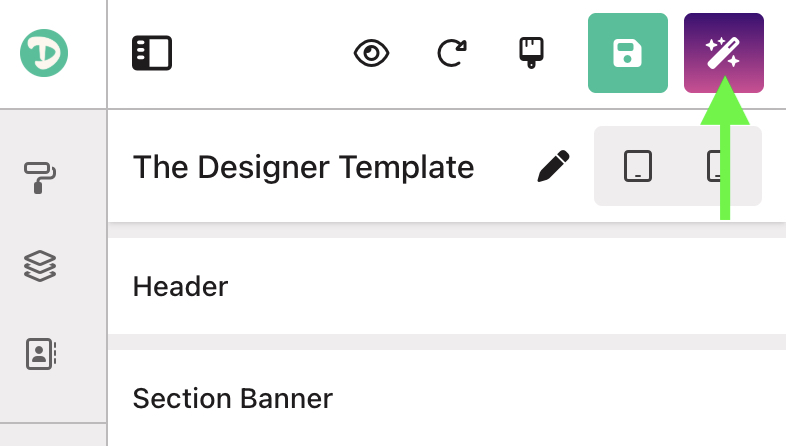
- Magic Updated: A dialog will pop up, confirming that your magic has been published.
- Check the Template: Feel free to check your updates by either reloading your browser or going back to your Dubsado form and clicking the Preview button.
With our latest Genie 5 script, you no longer have to copy and paste the magic to your Dubsado form. One-click publishing for the win!
Publishing a Genie 4.0 Template
-
Publish the Template: When you're ready to publish, click the Publish button located in the top-right corner:
- Magic Copied: A dialog will pop up, and the required code (referred to as the “magic”) will already be copied to your clipboard.
- Go to Dubsado Form: Open your Dubsado form and find the HTML block at the top of the form.
- Open the Code: Click inside the HTML block to reveal the existing code.
- Replace the Script: Replace the current script with the code (“magic”) that was copied earlier.
Want to upgrade to Genie 5.0 so that you can use Dubsado 3.0 and experience the one-click publish feature? Check out How to Update your *Existing* Dub-ins Genie 4.0 Template to Genie 5.0