
How to Convert Genie Classic Templates to Genie 5.0 Templates
If you've upgraded to Genie 5.0 and want to bring your Genie Classic templates along, this guide will walk you through the conversion process. While some elements may require manual adjustments, following these steps will make the transition smooth and get your forms up and running with Genie 5.0.
Step-by-Step Conversion Guide
1. Duplicate Your Dubsado Form
Important: We recommend duplicating the Dubsado form with your Classic Genie template so that the original can continue to work in case you need to make updates to your new Genie 5.0 template.
Start by duplicating the Dubsado form that contains your Genie Classic template:
- Go to your Dubsado account and find the form with your Genie Classic template.
- Duplicate the form to create a new version you can work with.
2. Remove Existing HTML Blocks
Note: Before removing your HTML Blocks, make sure your Genie Classic templates have been saved in Genie Classic.
Genie Classic templates often have two HTML blocks at the top. In Genie 5.0, you only need one HTML block for the Initial Script.
- Remove both of the HTML blocks at the top of your duplicated form.
3. Add the Genie 5.0 Initial Script
Now, add a fresh HTML block to the top of your form and insert the Genie 5.0 Initial Script:
Be sure to save your form.
4. Load Your Template in Genie 5.0
To apply your old template in Genie 5.0:
-
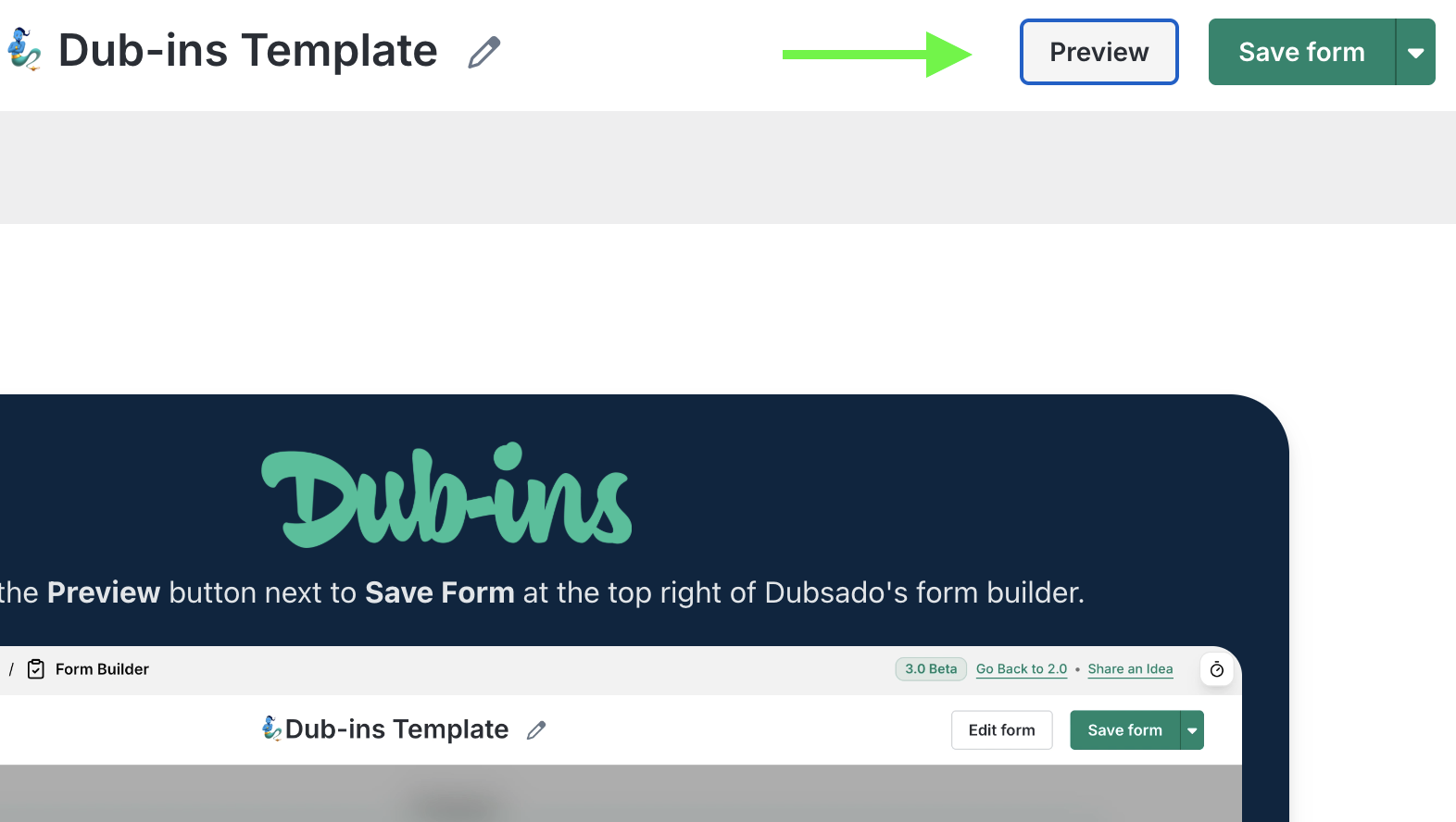
Open the public-facing version of your duplicated Dubsado form by clicking Preview in the top right corner of Dubsado’s form builder:
-
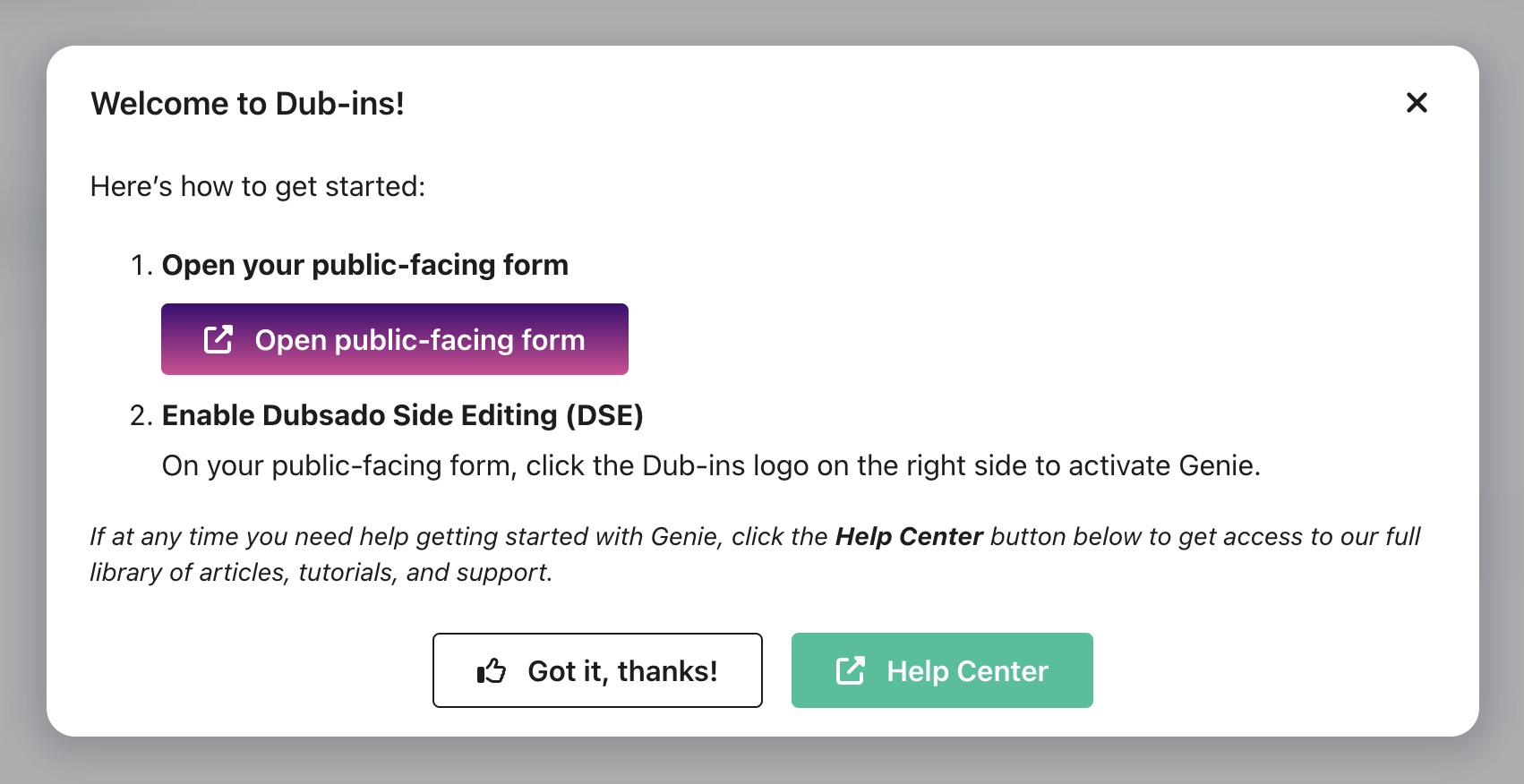
You’ll be prompted to Open public-facing form:
-
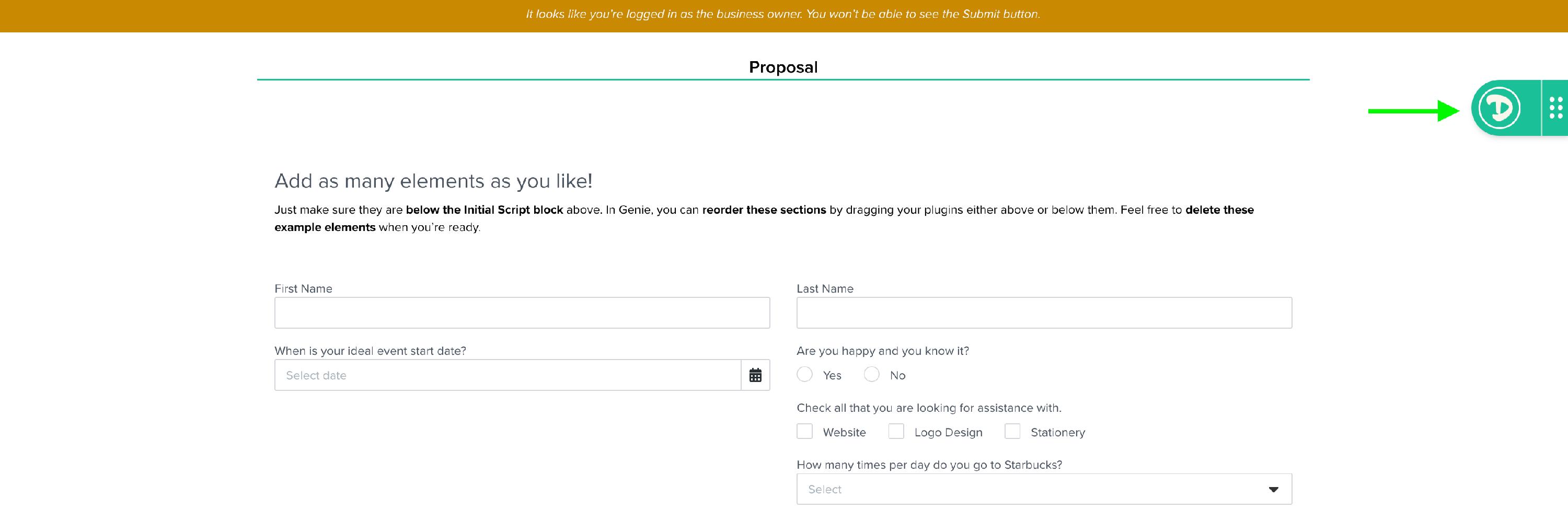
Click the Dub-ins logo (located on the right side of your public-facing form) to activate Genie:
When prompted, log into Dub-ins with your credentials. Can’t login? Why Can’t I Log Into Dub-ins?
-
Select Templates (located in the left side navigation) then under Version Filter, select Classic Genie and find your old template from the list:
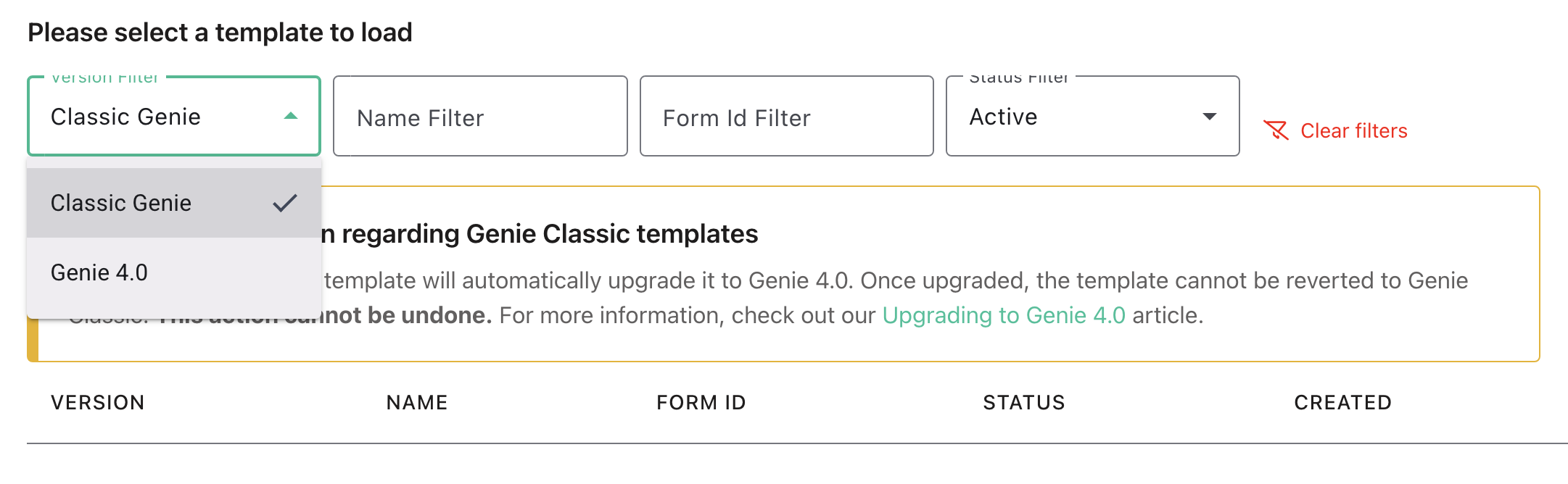
- Under the Actions column click to load your template.
6. Fix Potential Breaking Changes
You may encounter a few issues when loading your Genie Classic template in Genie 5.0. Find out What Template Changes Should You Expect When Upgrading to Genie 5.0 and how to fix them.
Need Help?
If you run into any issues or have questions, you can reach out to us directly:
- Click the support button inside your Genie 5.0 public-facing template. This helps us prioritize your request and separate it from Genie Classic tickets.
We’re here to help make your transition to Genie 5.0 as seamless as possible!