
Understanding Save vs. Publish in Genie 5.0
Genie 5.0 gives you two ways to work with templates: Save and Publish. While they may sound similar, they do very different things. Knowing when to use each one will help you avoid duplicate templates and ensure your Dubsado forms update exactly when you expect them to.
TL;DR
- Save stores a template for later use
- Publish updates the live Dubsado form
- Always load your template first before editing to avoid duplicates
| Action | What It Does | Affects Live Form? | Stored for Reuse? | When to Use It |
|---|---|---|---|---|
| Save | Stores the template in your Dub-ins account | ❌ No | ✅ Yes | When you want to keep a version for later or continue editing safely |
| Publish | Updates the magic on the connected Dubsado form | ✅ Yes | ❌ No | When you want your changes to go live on that specific form |
Save vs. Publish: What’s the Difference?
Publish: Make Changes Live on Your Form
Publishing happens when you click the Publish button in Genie:
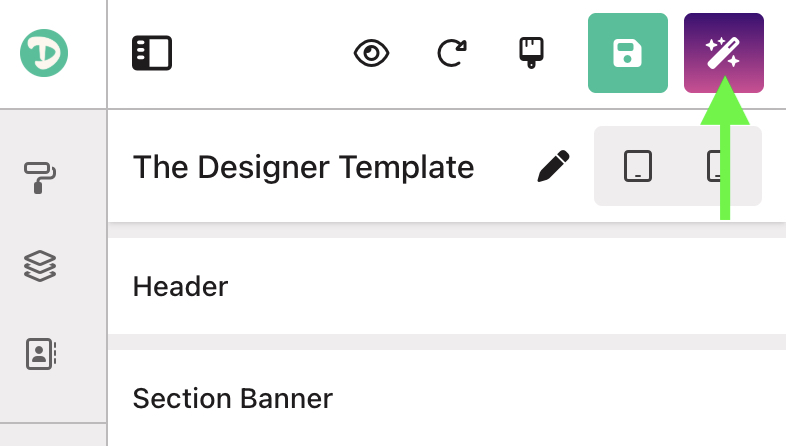
When you publish a template:
- Genie updates the magic (the top-most HTML block) on the connected Dubsado form
- Any edits you’ve made in Genie are immediately reflected on that form
- The published version becomes the active version applied to the form
Use Publish when you want your changes to be visible on the form right away.
Note: One-click publishing is new in Genie 5.0. Publishing now automatically updates your Dubsado form. Manual copying and pasting is no longer required.
Save: Store a Reusable Template
Saving stores your template inside your Dub-ins account, making it available from the Templates screen:
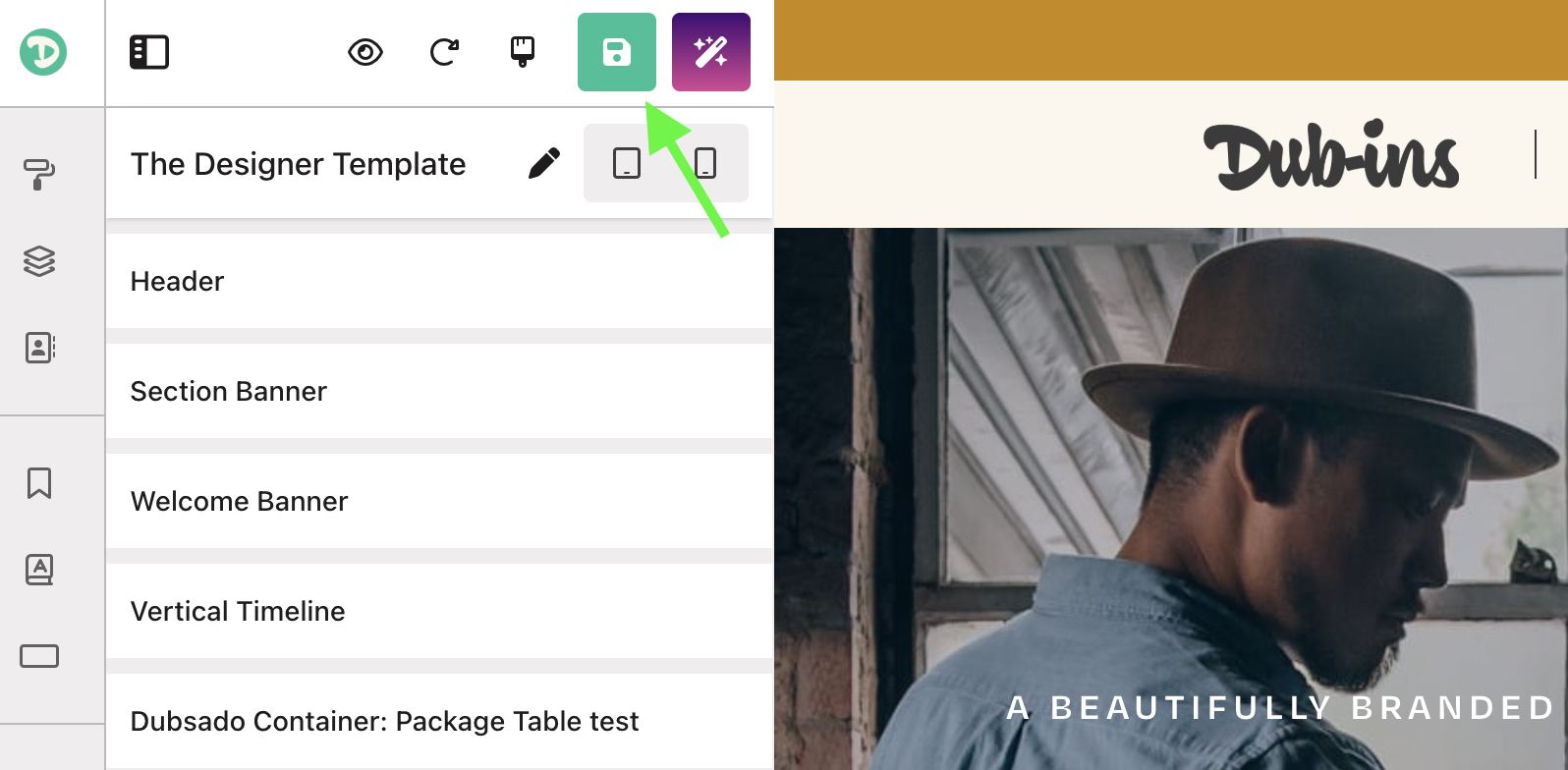
When you save a template:
- It’s stored for future use
- It does not update the magic on your Dubsado form
Use Save when you want to keep a version for later or continue editing without affecting a live form.
Important: Saving does not make changes live. Only clicking Publish updates the form.
What Happens When You Reopen a Form
If magic was previously published to a Dubsado form:
- When you reopen the public-facing form, Genie loads the last published version
- The template name will not automatically appear
- Genie treats this state as unpublished and unnamed
If you edit at this point and click Save:
- Genie will prompt you to name the template
- This creates a new saved template, even if it’s nearly identical to one you already have
This is the most common reason users end up with multiple similar templates.
Best Practice: Load Your Template First
To avoid duplicates and keep your templates organized:
- Open the public-facing Dubsado form
-
Go to Templates
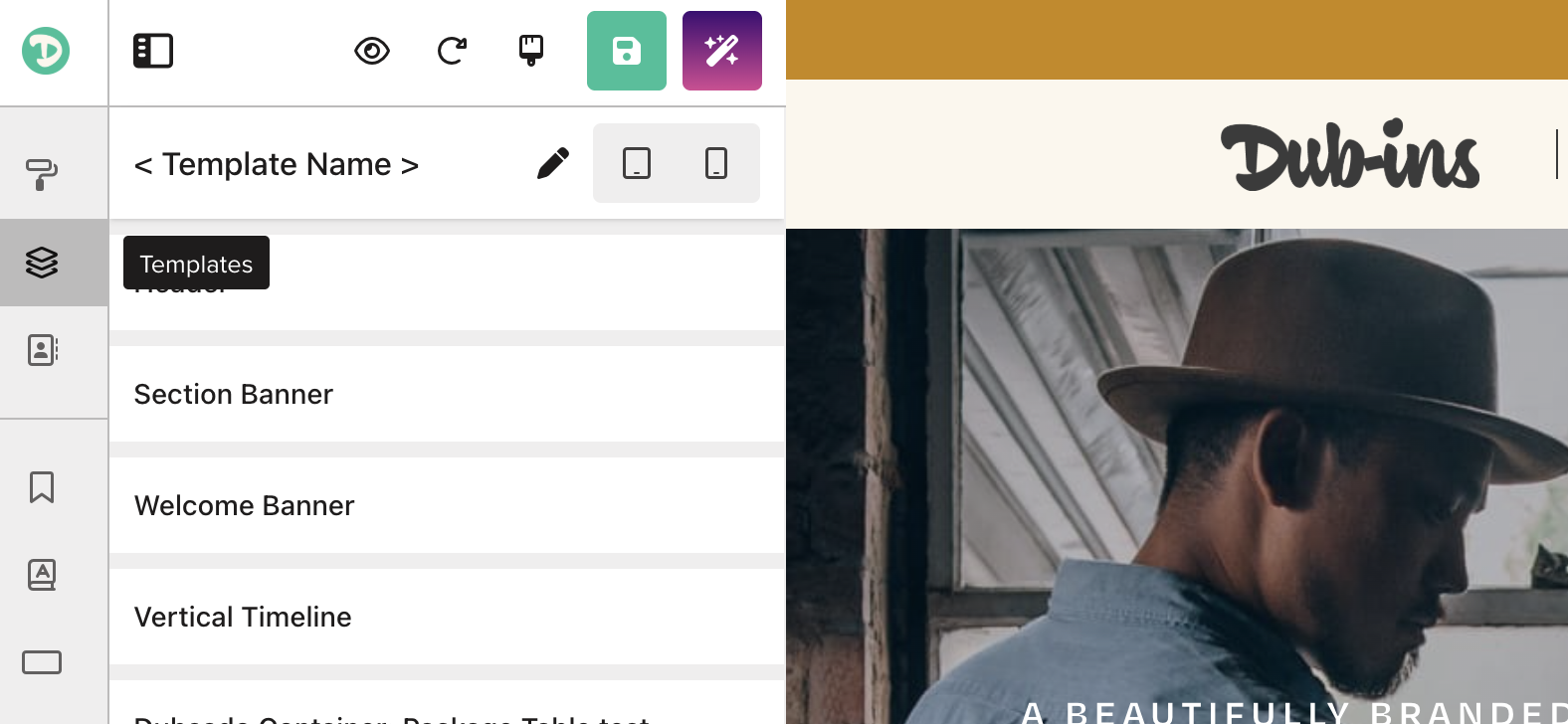
- Load the template you want to work on
- Make your edits
- Save or Publish as needed
Loading the template tells Genie which template you’re editing.
Applying a Template to Another Dubsado Form
To use a saved template on a different form:
- Open the new public-facing Dubsado form
- Go to Templates
- Load the template you want
- Click Publish to apply it to that form
If magic is already applied to a form, Genie will show the template in its current published state when you open it.
Should I Save or Publish?
Ask yourself one question:
Do I want this change to show on my Dubsado form right now?
- Yes → Publish
- No → Save
Still unsure?
- Drafting or experimenting → Save
- Ready for clients to see it → Publish
- Reopening an existing form → Load the template first, then decide
Best Practices for Managing Templates
Follow these tips to keep everything tidy and predictable:
-
Save frequently
Save as you build to preserve progress without affecting live forms
-
Publish intentionally
Publish only when you’re ready for changes to go live
-
Always load before editing
Editing without loading creates new templates
-
Fix sync issues cleanly
If the published version is better than the saved one, save it as a new template and delete the outdated version
By understanding the difference between Save and Publish, and by always loading your template before editing, you can manage Genie 5.0 templates confidently without confusion or clutter.