
How to Update your *Existing* Dub-ins Genie 4.0 Template to Genie 5.0
With the release of Genie 5.0, Dub-ins templates now update automatically with a click of a button—no more copying and pasting the magic every time you make changes. 🎉
To switch your existing templates over from Genie 4.0 to Genie 5.0, follow the steps below.
Note: You can continue to use Dubsado 2.0 with the latest initial script below to access the new one-click publishing feature.
1. Open your public-facing Dubsado form
- Go to your public-facing form so you can activate Genie.
-
Load your saved template (left side navigation > Templates), then click Save:

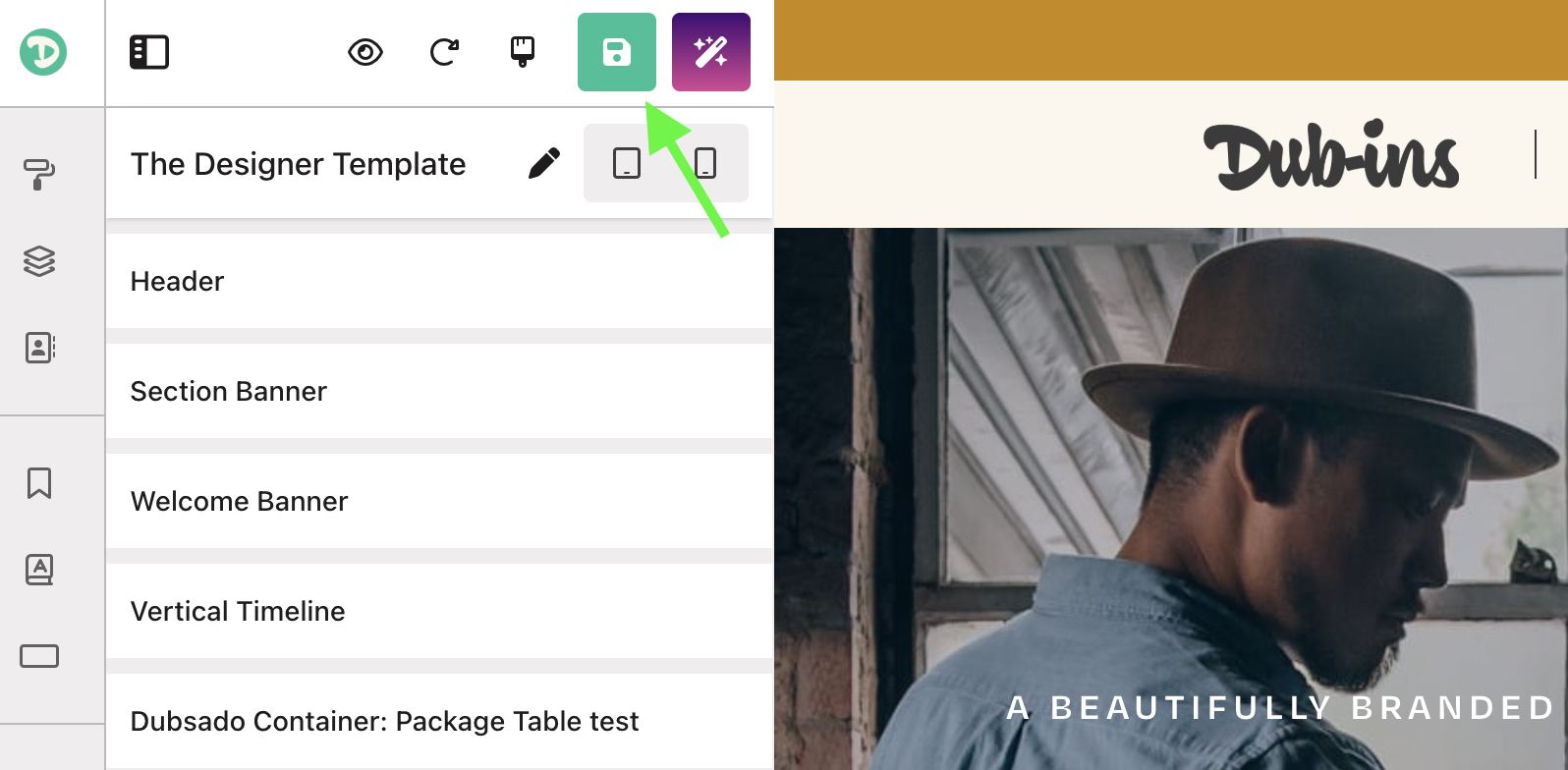
2. Update the initial script on your form inside Dubsado’s form builder
- Head back to your form over in Dubsado.
- Click into the top-most HTML block — the one containing your original Genie 4.0 initial script + magic code.
- Select all of the existing code.
-
Replace it with the new Genie 5 initial script:
- Click Save in Dubsado.
Note: If you still have the old blue instructions block, you can safely delete it. The new Genie 5.0 script includes an updated instructions block.
3. Publish your updated form
- Now head back over in Genie (the public-facing version of your form).
-
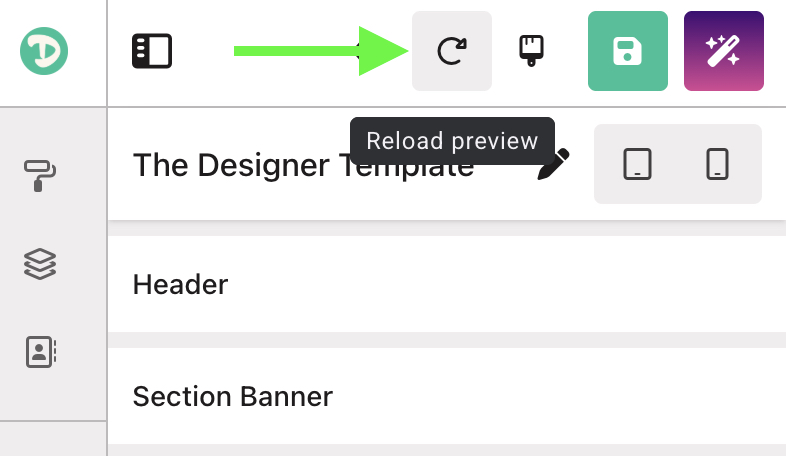
Click the Reload preview button:
-
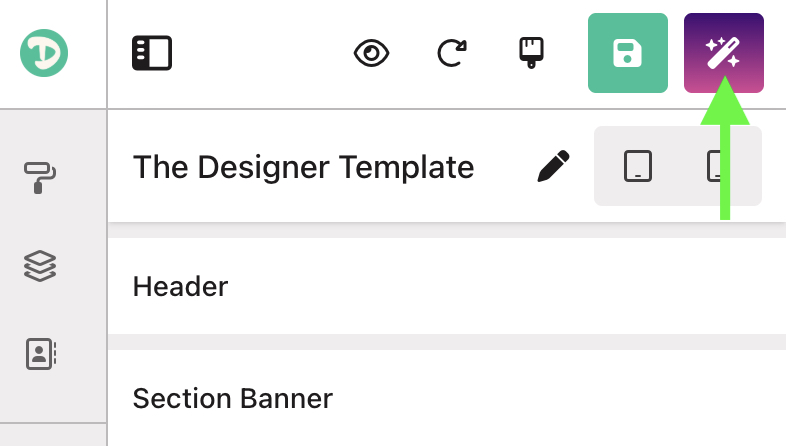
Click Publish:
That’s it — you’re Dubsado form is now set up with Genie 5.0, compatible with Dubsado 3.0 and ready for one-click publishing!
After updating to the 5.0 script:
- You can work inside Dubsado 3.0.
- You no longer need to copy/paste magic code into Dubsado.
- Clicking Publish automatically pushes all Dub-ins template updates to the specific Dubsado form that you’re working with.
- Any future edits you make inside Dub-ins will sync instantly on publish.
If you run into anything unexpected during the update, feel free to reach out — we’re here to help.