
Using a Genie Template on a Different Dubsado Form
You can add one of your saved Genie templates to a different Dubsado form by adding the Initial Script to this Dubsado form. Add an HTML block at the top of your Dubsado form, copy the following Initial Script and paste it inside the block:
Once you’ve added the Initial Script above, click Save form in the top right hand side of your Dubsado.
How to Get Started:
- Add Elements
- Beneath the top HTML block (the initial script you copied and pasted above), add as many Dubsado elements as you'd like (e.g., Text Box, Short Answer, Package, etc.).
- Save your Dubsado form.
- You can always come back to add more elements later.
- Open Your Public-Facing Form
-
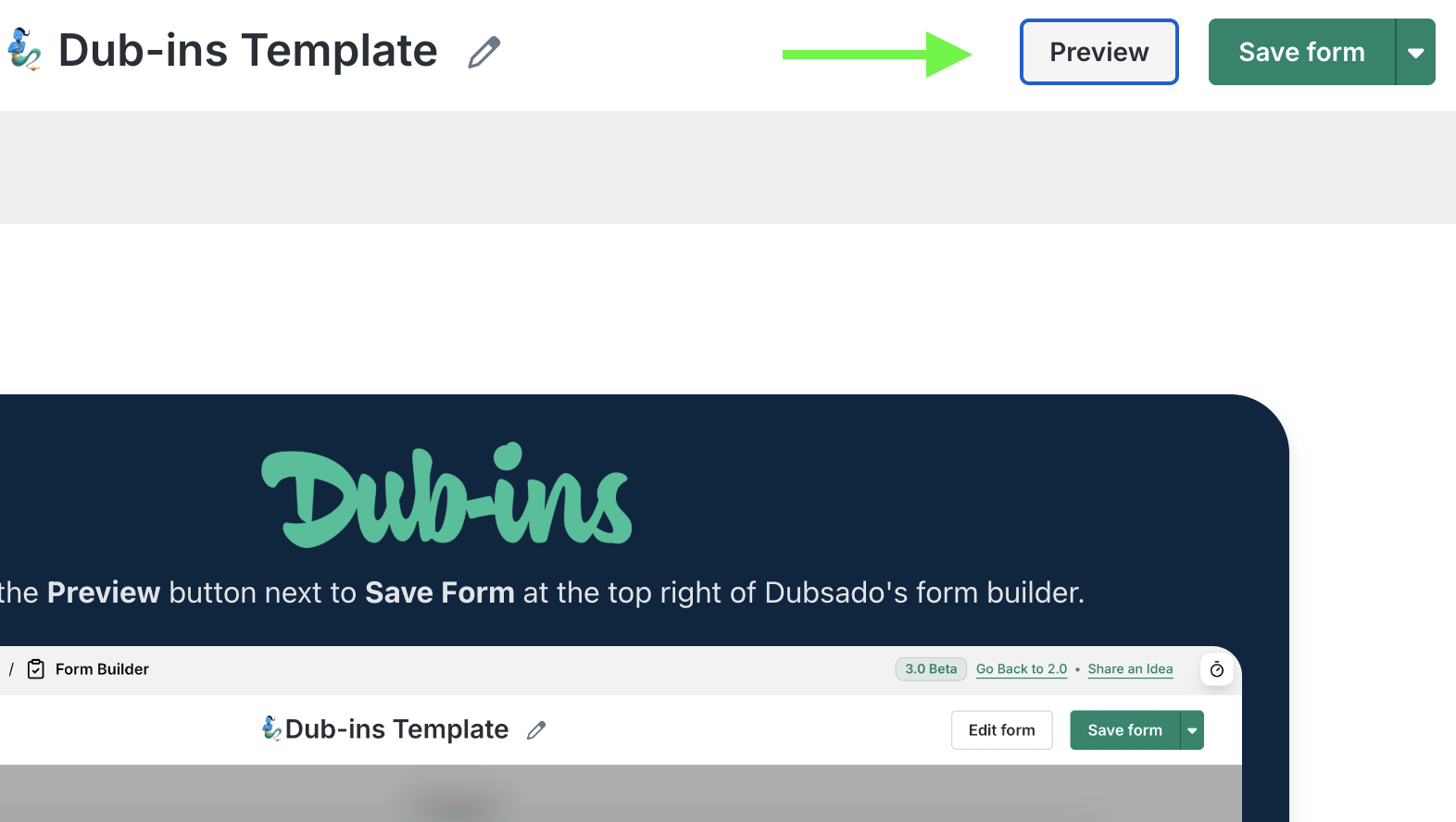
Click the Preview button inside of Dubsado’s form builder:
-
- Open your public-facing form
-
After clicking Preview, you’ll see the following popup:

- Click the Open public-facing form button.
-
- Enable Dubsado Side Editing (DSE)
-
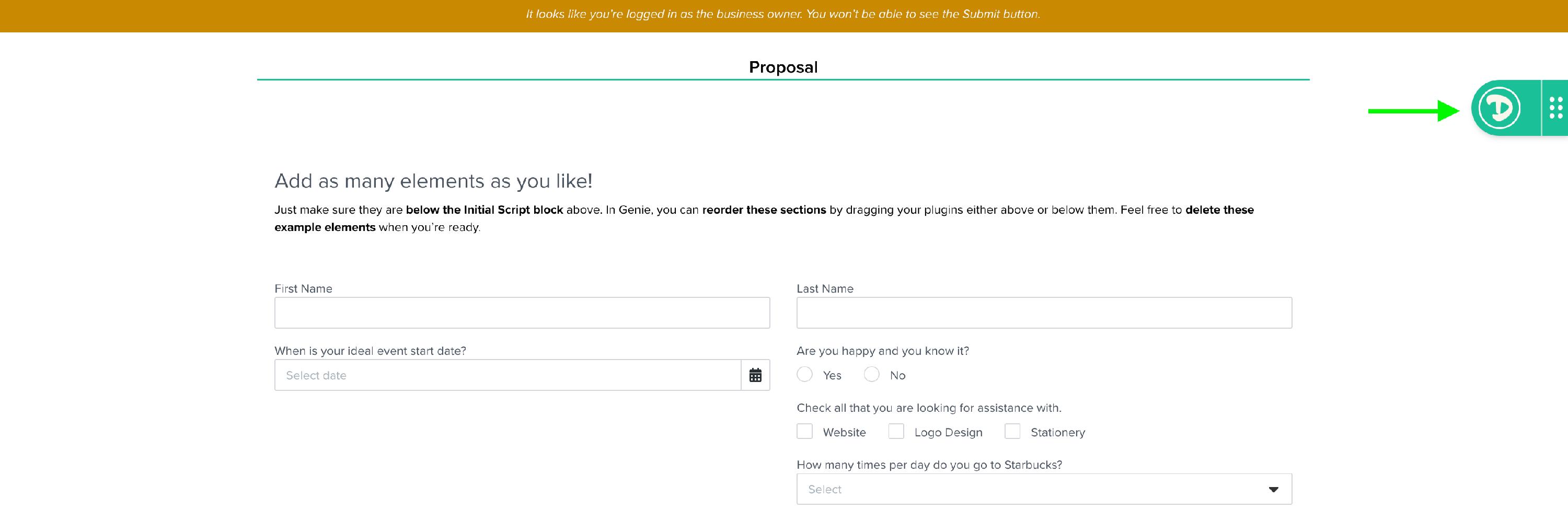
On the public-facing form, click the Dub-ins logo on the right side to toggle DSE.
-
-
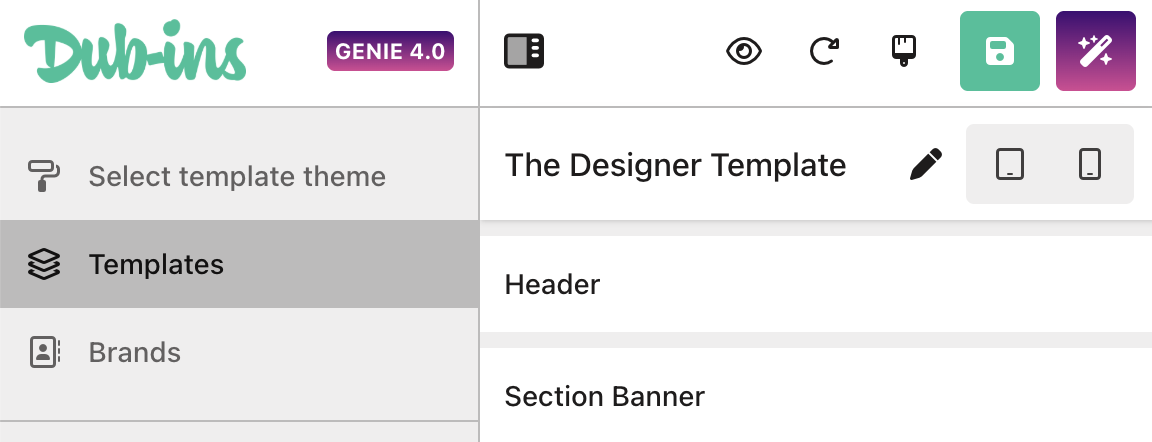
Select Templates (located in the left side navigation) then choose the template you would like to apply to your Dubsado form by loading the template.
- Update & Save
- As you add elements to your Dubsado form, always click Save Form to preserve your changes.
-
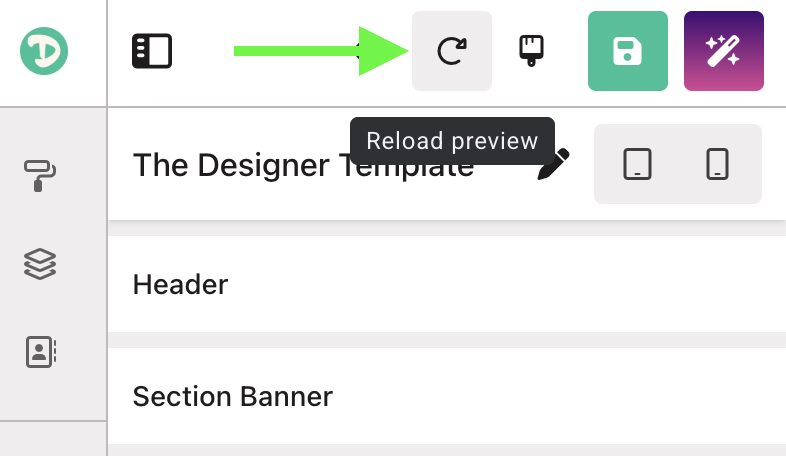
Back over on Genie, click the Reload Preview button on your public-facing form to see your changes reflected:

Updating a Genie Template Inside a Project
When a Dubsado template with a Genie template is added to a client project, the project template will include the same Genie template as the original. If you want to edit this project-specific template:
- Open the public-facing project form and make your edits tailored to the client.
- Once your edits are complete, click Publish to update the Genie magic.
- Your project form will now reflect your updates without impacting the original Dubsado template.