
Using Genie with a Questionnaire
By default, Dubsado Questionnaire templates are private, meaning they cannot be viewed as a public-facing form unless added to a project. Since Genie 4.0 and 5.0 require public-facing forms, simply opening your questionnaire in a new tab will result in a blank page. To resolve this, we recommend creating a test project called “Genie Templates.” This project can store all your templates (excluding Lead Capture forms, as Dubsado does not allow these to be added to projects).
Steps to Use Genie 5.0 with a Questionnaire
- Create a Test Project:
- Create a project named “Genie Templates” to store your templates (except Lead Capture forms).
- Go to your Dubsado Templates:
- Dubsado 3.0: Dubsado → Forms → Form Templates
- Dubsado 2.0: Dubsado → Templates → Forms
- Open the Questionnaire Template that you want to use and make sure it’s set up with Genie 5.0 initial script: Setting Up Genie With an Existing Dubsado Form
- Add Questionnaire to Your Test Project:
- Go to the Genie Templates project, click the Forms tab, and add the Questionnaire Template that you just updated with Genie 5.0 initial script.
- Click Edit, then follow the instructions to open the questionnaire in a public-facing window.
-
When you’re finished editing your Genie template, click Publish to push your Genie template live to the Test Project Questionnaire. The pop up will show that your Questionnaire project form has been published, but you have the option to update the Questionnaire Template. Click Publish Magic to Dubsado Template to also push the magic to your Questionnaire Template.
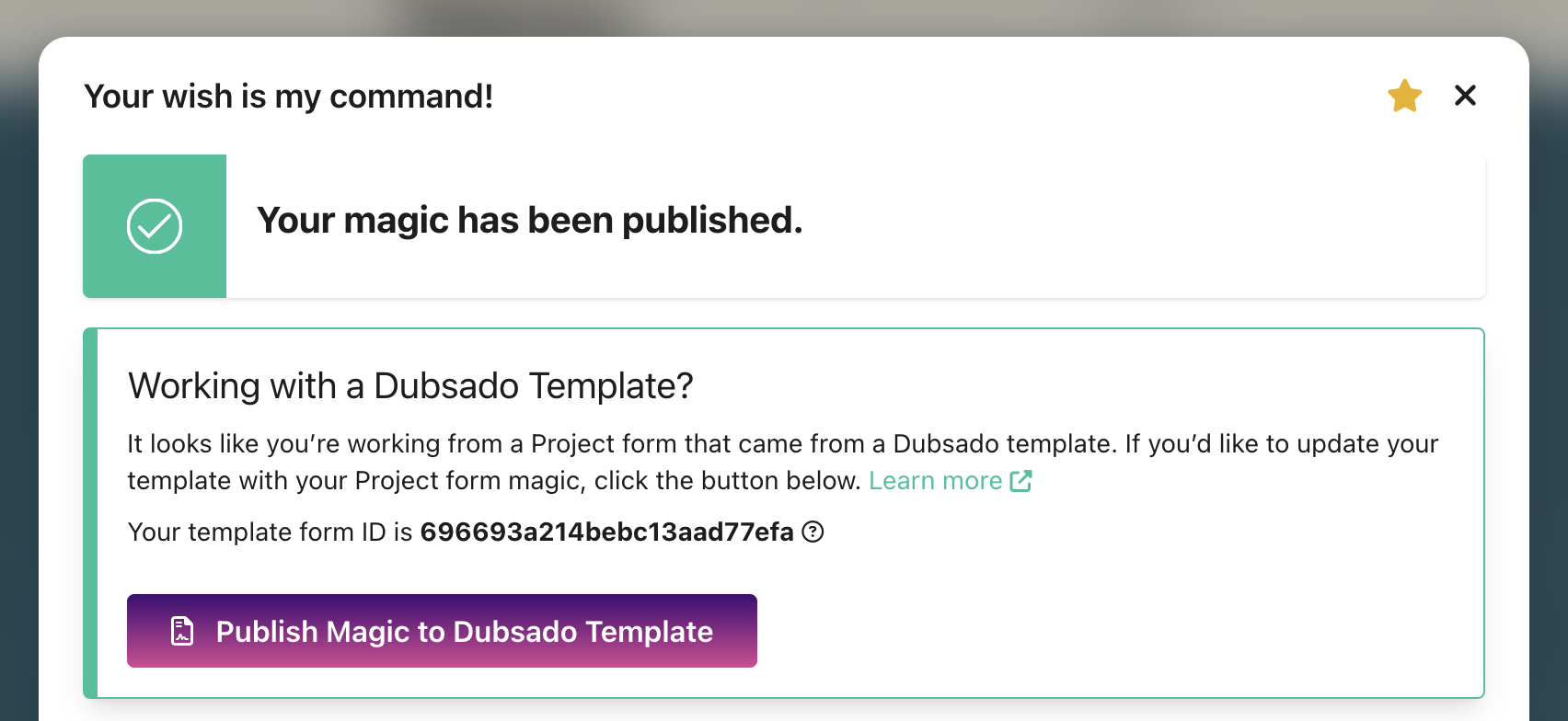
Important: If you’re working from a real client project and need to update your project Questionnaire form to tailor it to your client, do not click Publish Magic to Dubsado Template as this will also update your original Questionnaire Template.
Steps to Use Genie 4.0 with a Questionnaire
Regardless of your approach, a project is needed to view your questionnaire as a public-facing form and use Genie on it.
- Create a Test Project:
- Create a project named “Genie Templates” to store your templates (except Lead Capture forms).
- Duplicate Your Proposal Form:
- Go to your Proposal form set up for Genie 4.0 and click Save form > Save copy to duplicate it.
- Convert Proposal to Questionnaire:
- In your template page, drag the duplicate Proposal form into the Questionnaires section to turn it into a Questionnaire.
- Add Questionnaire to Your Test Project:
- Go to the Genie Templates project, click the Forms tab, and add the new questionnaire.
- Click Edit, then follow the instructions to open the questionnaire in a public-facing window.
- Edit and Save the Questionnaire:
- After publishing the Questionnaire and adding your magic to the Initial Script HTML block, click Save form > Save as template to save it to your Templates > Forms > Questionnaire section.
- Leave the questionnaire in the Genie Templates project for easy reference.
By following these steps, you'll be able to view and use your questionnaire with Genie 4.0 successfully.