
Setting Up Your Dubsado Templates for Genie 5.0
With Genie 5.0, the way you work with templates and publish magic has changed slightly from previous versions. The goal is more stability, clearer separation, and fewer surprises on live project forms.
If you’ve used Genie before and feel like the ground shifted just a bit under your feet, this article will get you oriented.
How This Worked Before
In earlier versions of Genie, we often recommended creating a test “Genie” project in Dubsado. This approach:
- Forced forms to be public so Genie could run
- Gave you a central place to organize and access your Dub-ins templates
- Allowed you to work directly from project forms
That workflow is no longer necessary when using the Genie 5.0 script.
Where You Work Now in Genie 5.0
If you’re using Genie 5.0, all template development can begin at the Dubsado form template level:
- Dubsado 3.0: Dubsado → Forms → Form Templates
- Dubsado 2.0: Dubsado → Templates → Forms
This change exists because Genie 5.0 introduces a new one-click Publish feature that depends on the template setup.
Note: Questionnaires will still need to be inside of a test project in order to add a Genie Template to them. Check out Using Genie with a Questionnaire to learn more.
Recommended Workflow (Proposals & Lead Capture Forms)
For Proposal and Lead Capture forms, we recommend the following flow:
- Open your Dubsado form template
- If you copied one of our Genie Templates to your Dubsado account, you’re good to go. Otherwise, add the Genie 5.0 initial script to the template and save your Dubsado form
- Open the public-facing form to access Genie (click Preview in Dubsado’s form builder > click Open public-facing form on the pop up)
- Build or load your Dub-ins template
- Click Publish
Any project form created from your template can be edited without affecting the original Dubsado template. With Genie 5.0, one-click publish safely applies those edits at the project level only.
Note: If your Dubsado template throws an error on the public-facing form, this is normal if your template is not public.
What Happens After a Project Form Is Created
Once a project form is created from a template:
- The project form and the template become separate
- You can freely edit the Dub-ins magic on the project form
- You can publish updates to the project form without impacting the original template
-
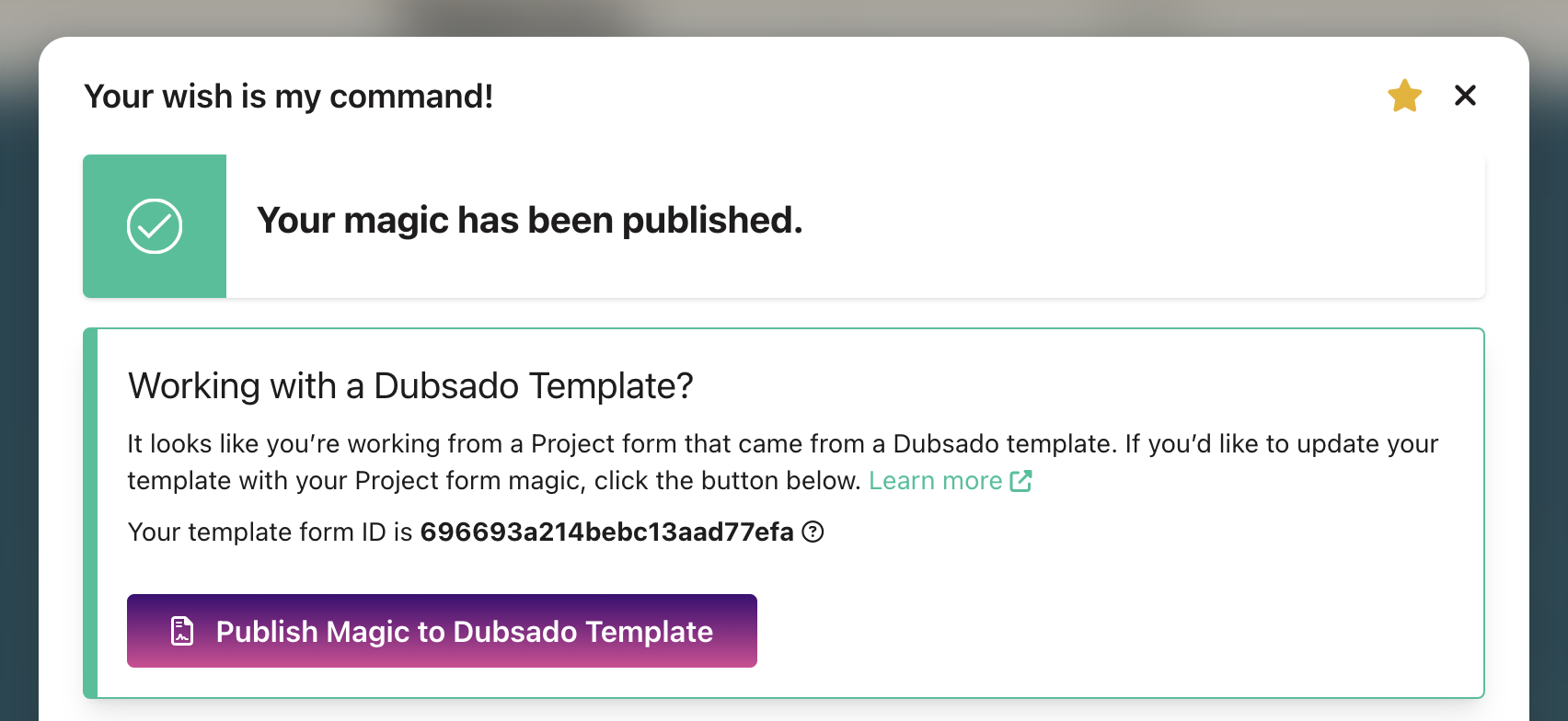
If you’d like, you can publish your updates to the project form and the template form by clicking Publish Magic to Dubsado Template:
- Updates made later to the template will only apply to future project forms, not existing ones
Think of the template as the source and the project form as a snapshot taken at creation time.
Key Takeaways
- Genie 5.0 is template-dependent, not template-only
- Templates define eligibility; project forms define customization
- Test Dubsado projects for housing your Genie templates are no longer required (unless you’re using a Questionnaire)
If you’re upgrading from Genie 4.0 or Classic, reviewing your existing templates before creating new projects is essential.
Need help getting everything aligned? Our support team is happy to help.